Predicting mud weight along the wellbore
On the Along Wellbore form, specify the following options and then run the algorithm.
-
Output data type Select the output for the calculation.
EMW-RT produces a view with pore and collapse pressure in terms of EMW.
Pressure produces a view with the final pore pressure and collapse pressure case logs.
Lower / Upper Bounds Select the checkbox to calculate the lower and upper bounds as defined on the Input and Boundaries form.
MW Windows Select the checkbox to calculate the mud windows for the data.
MW Windows (Open Hole) Select the checkbox to calculate the mud windows for open hole section, which is depth range between last casing MD and the end wellbore MD. If this depth range is smaller than Default MD step for logs specified in the Property Catalog, this option is not available.
(Re)Calculate Calculates the mud window. To perform this calculation for the first time, you need to check one or both of the Lower Upper Bounds and Mud Windows options. For existing calculations, this button is active after you have made changes that require a recalculation. The calculation results are displayed in the table of the Analyze MW Window section.
-
Click Show to open the Predict Mud Weight view that initially displays the mud weight log specified in Step 1, the lithology track, the well schematic and the results of the mud weight prediction calculation. Data related to the results of the calculation, such as the Shmin, SHmax, Overburden Stress logs and all collapse pressures in the same track (if Use all supported Failure Criterion was selected) can be quickly added to the Predict Mud Weight view through Show View Options (wellbore stability > Predict Mud Weight > Show View Options). Check the box or click the arrow to expand the Show result options list. In this list, check the boxes for the different views or WCV tracks of interest and click Show to update the Predict Mud Weight view. If you choose to open a 3D or 2D view, you can specify additional parameters, such as the colorset range and view perspective, before opening the view. The table below describes each of the tracks and views that can be opened in this step.
The casing design table on this form is synchronized with the Input and Boundaries casing table form. Whatever change you make in one of the tables will be reflected in the other if the locks are open. -
Adjust the mud window values in the table of the Analyze MW Window section.
Minimum MW window preference Specify a minimum size for the mud window. To change the units, right-click the current unit.
Mud Window table click to enlarge
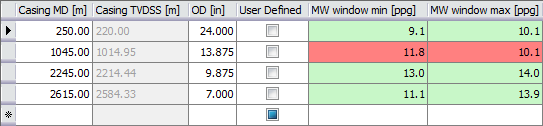
Mud Window Table The Mud Window table displays the Casing MD and TVD, Casing OD and minimum and maximum mud window values.
The Casing MD and OD columns can be manually changed at any time by double clicking into the cell for a given depth and modifying the value. Note that if you change either the Casing MD or OD columns you must click the (Re)Calculate button on the Depth Based PMW form. The TVD column is read only.
If MW Window (Open Hole) option was used, then last tow in the table will display data related to the open hole section. Casing MD and OD columns in this row are non-editable.
By default, the mud window values are read-only. Checking the box in the User Defined column for a given depth allows you to manually define both the minimum and maximum bounds for the mud window. Double-click in the cell to edit before making your change. To apply the change, press ENTER. No recalculation is needed as the mud window in the Predict Mud Weight view automatically updates.
Mud window min and max values: Each cell in the MW window min and MW window max columns is one of the following colors:
- Green A safe mud window exists for the given depth.
- Red An unsafe mud window where the lower bound exceeds the upper bound.
- Gray A manual change has been made to either or both of the mud window values.
- Orange A mud window range smaller than the user-defined mud window preference, if specified.
When making a manual adjustment, the cell background colors turn gray, as does the mud window representation in the Predict Mud Weight view.
Add Casing Section Adds a new row to the mud window table. By default, the new row is appended to the end of the table with the Casing MD and OD values populated. You can change these values if necessary.
Show Well Table Opens the Well Table with the Casings tab active. You can edit the casing design by clicking on the Edit Casing Scheme button to open the Casing Scheme form. On the form, type new values in the entry fields of the table.
-
(Optional) To manually define a custom mud weight log, click the Define MW Program button (wellbore stability > Predict Mud Weight > Tools).
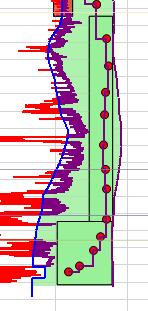

Manually defining a custom mud weight log click to enlarge
- Click OK to close the form and continue with the next form of the workflow.